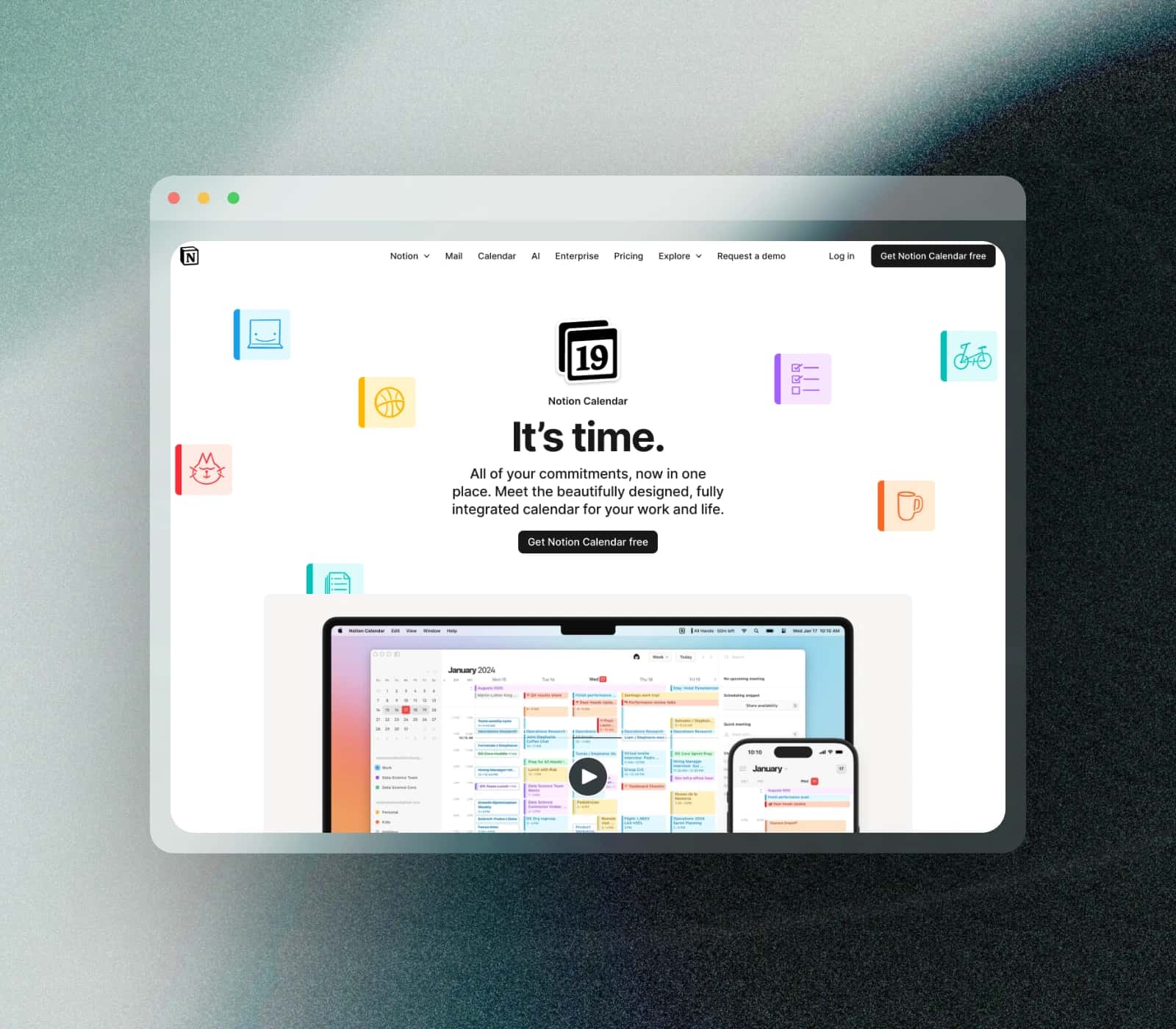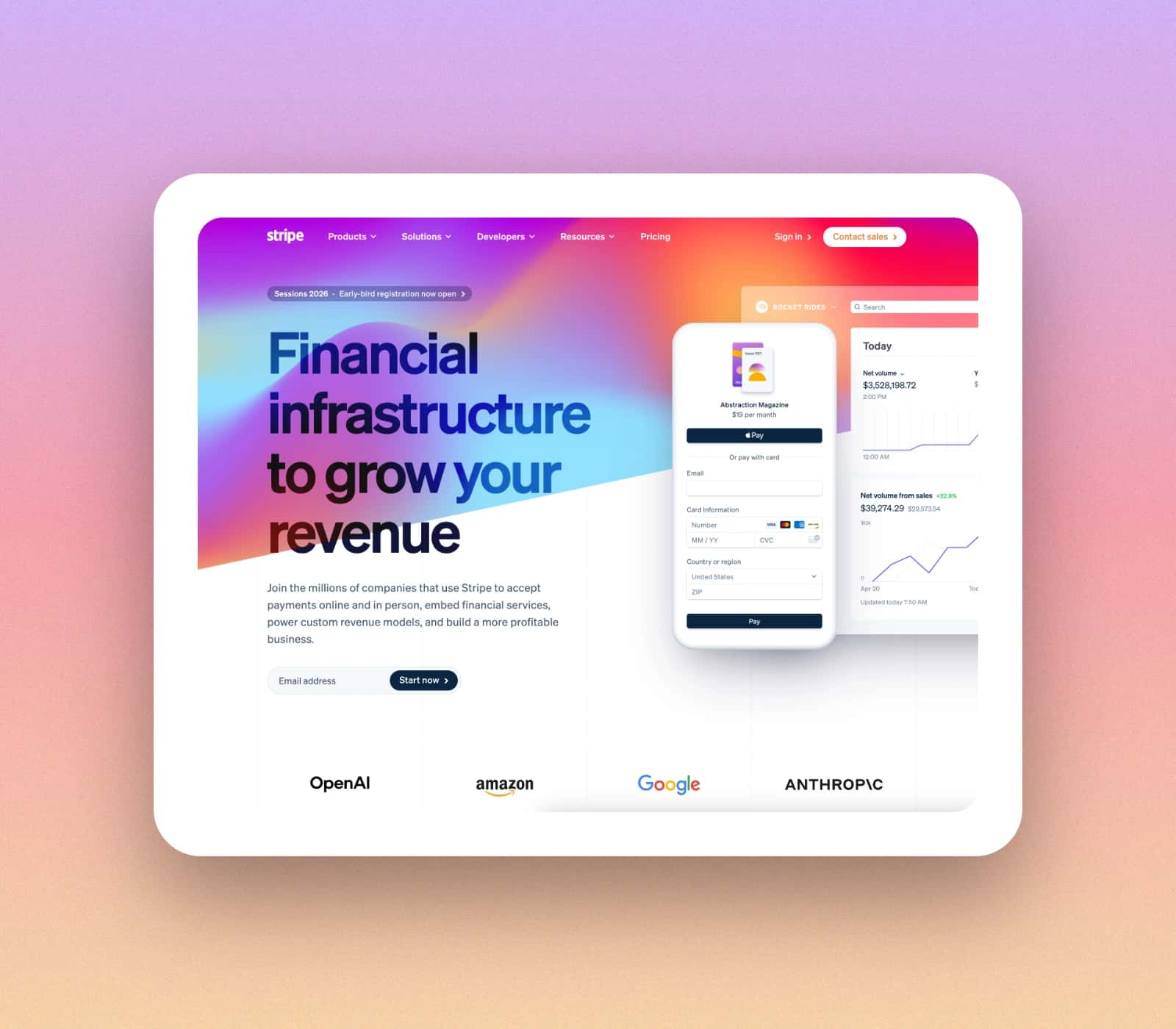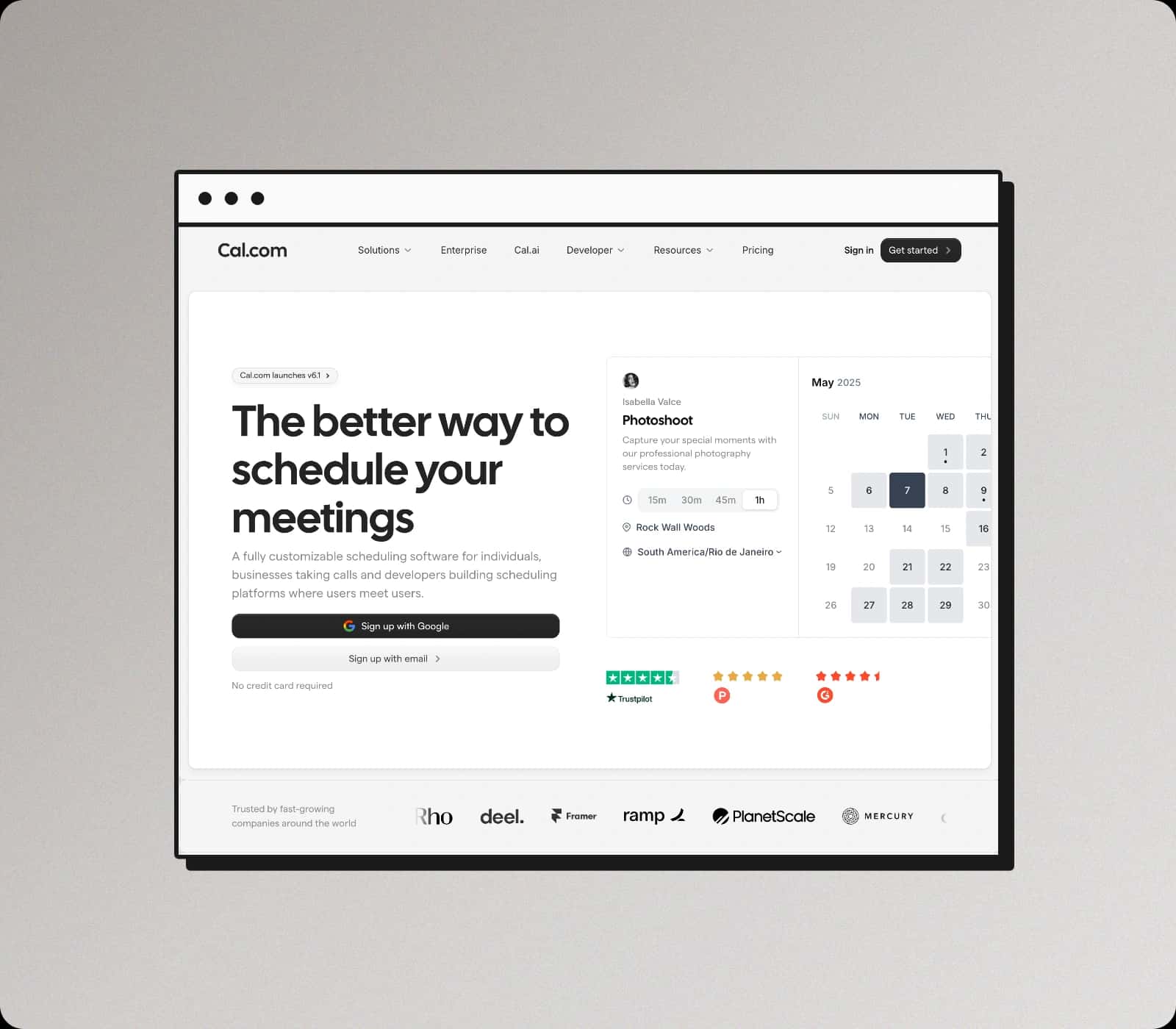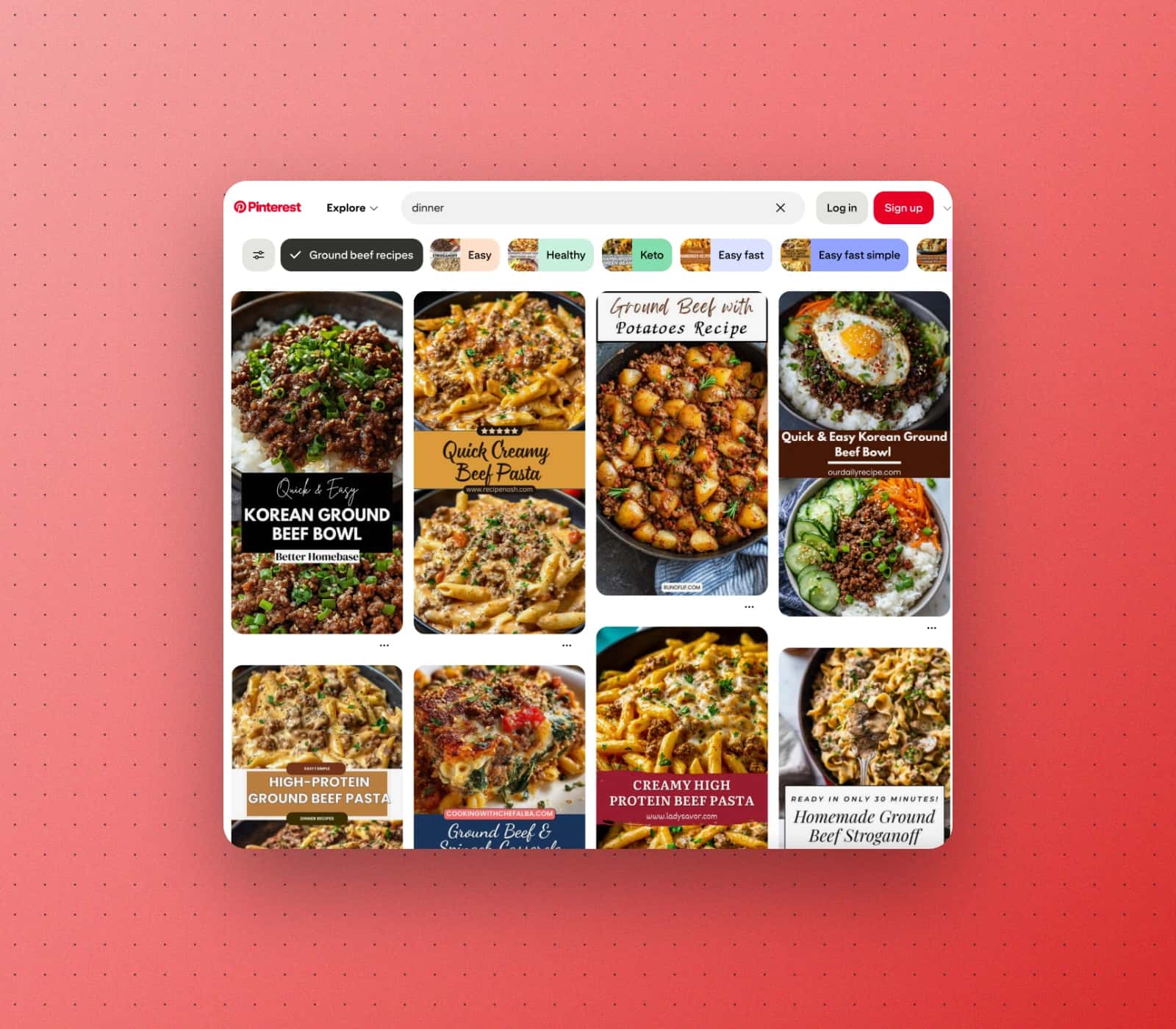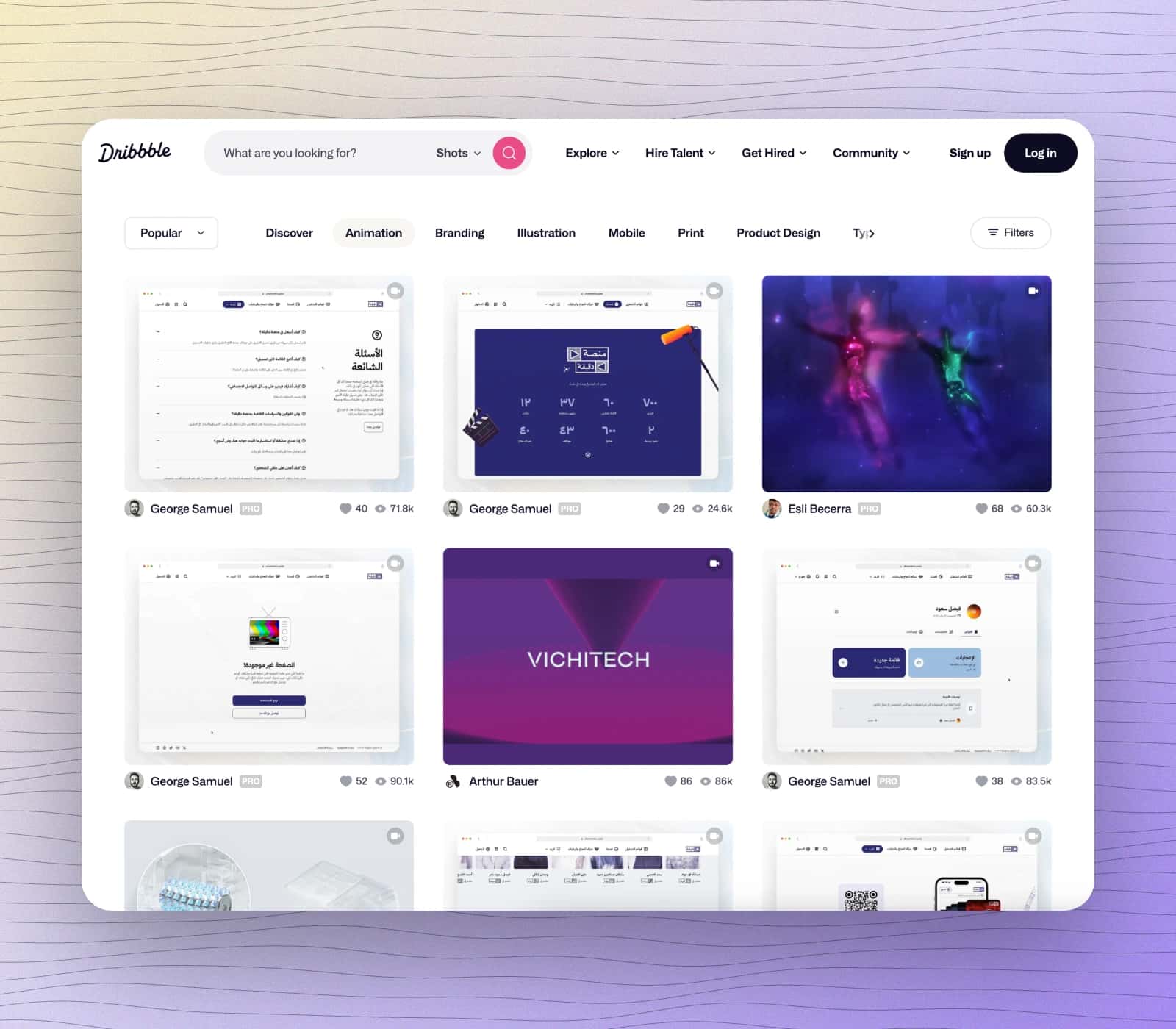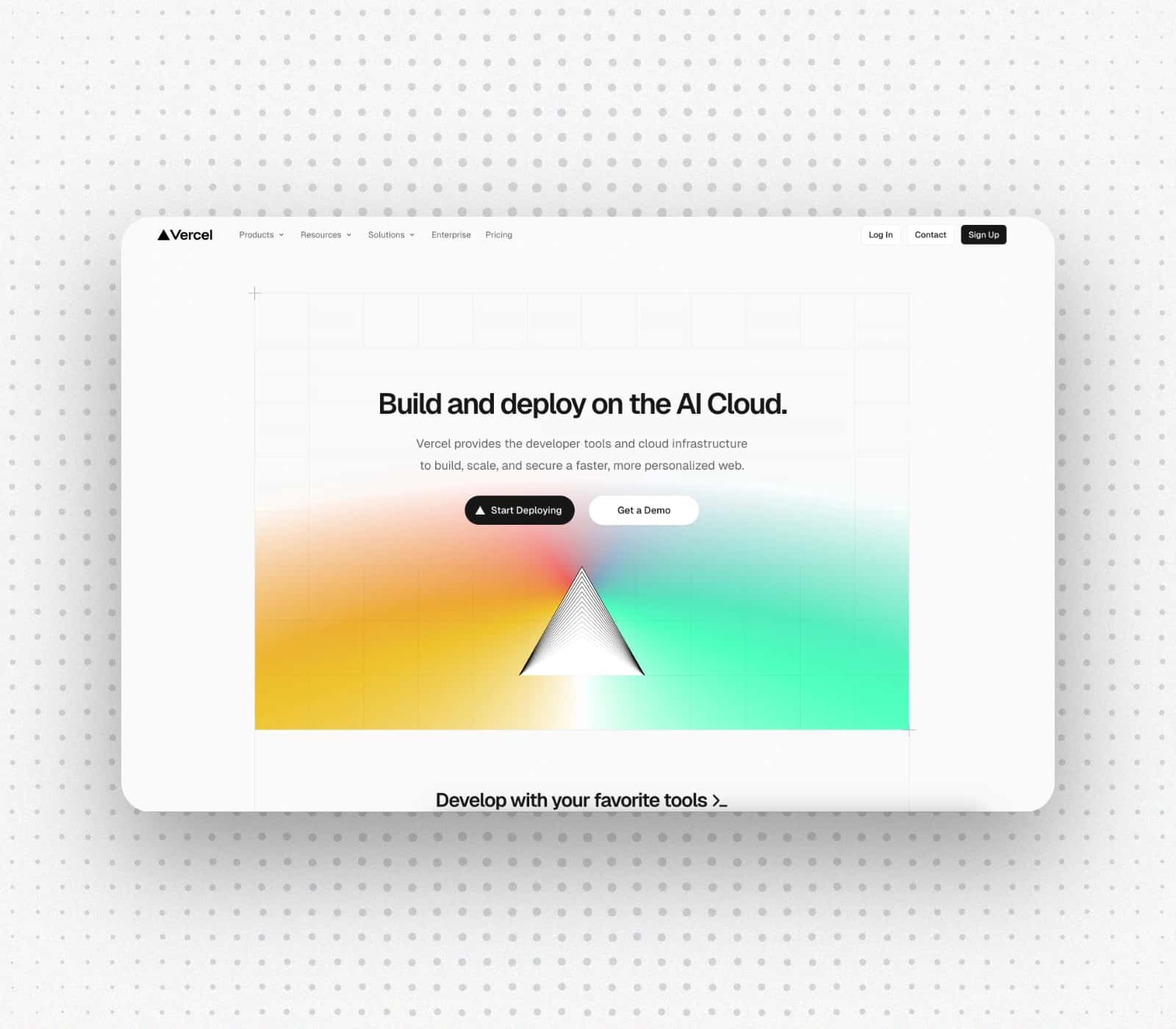
Before
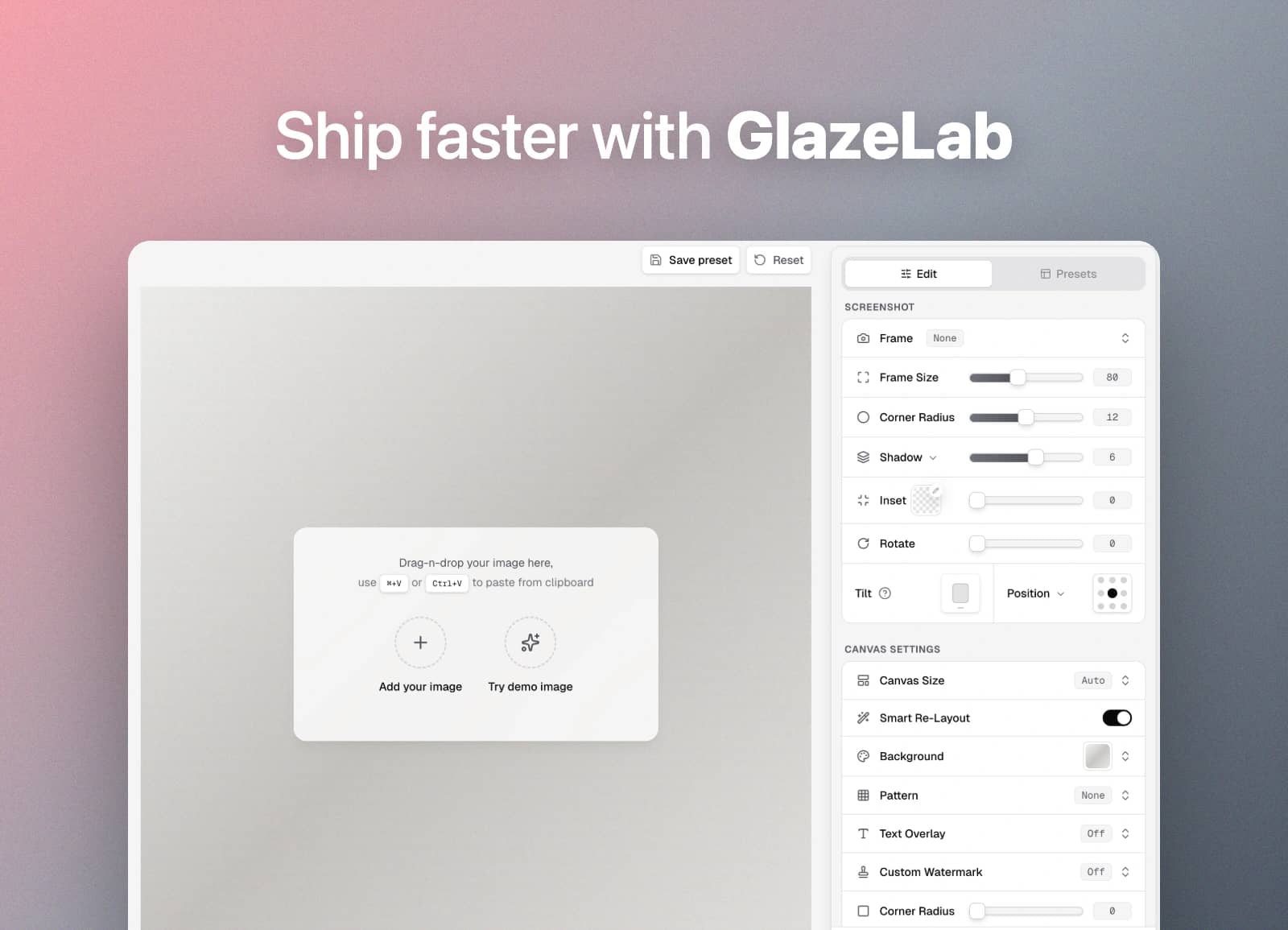
Raw capture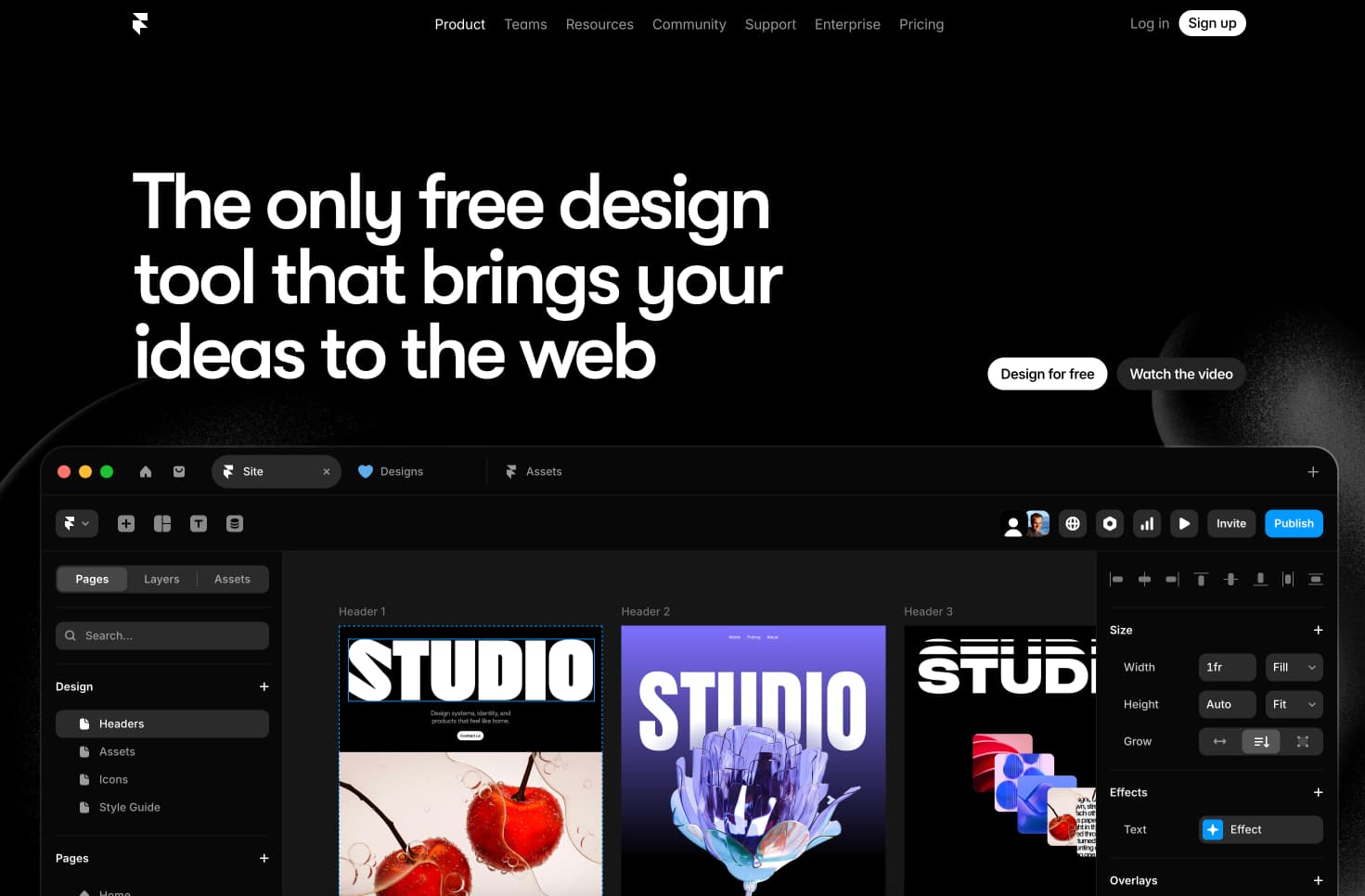
Beautify screenshots online with balanced framing, clean backgrounds, and annotation-ready styling.
Built for product teams, creators, and indie makers who want to beautify screenshots online without design-suite overhead.
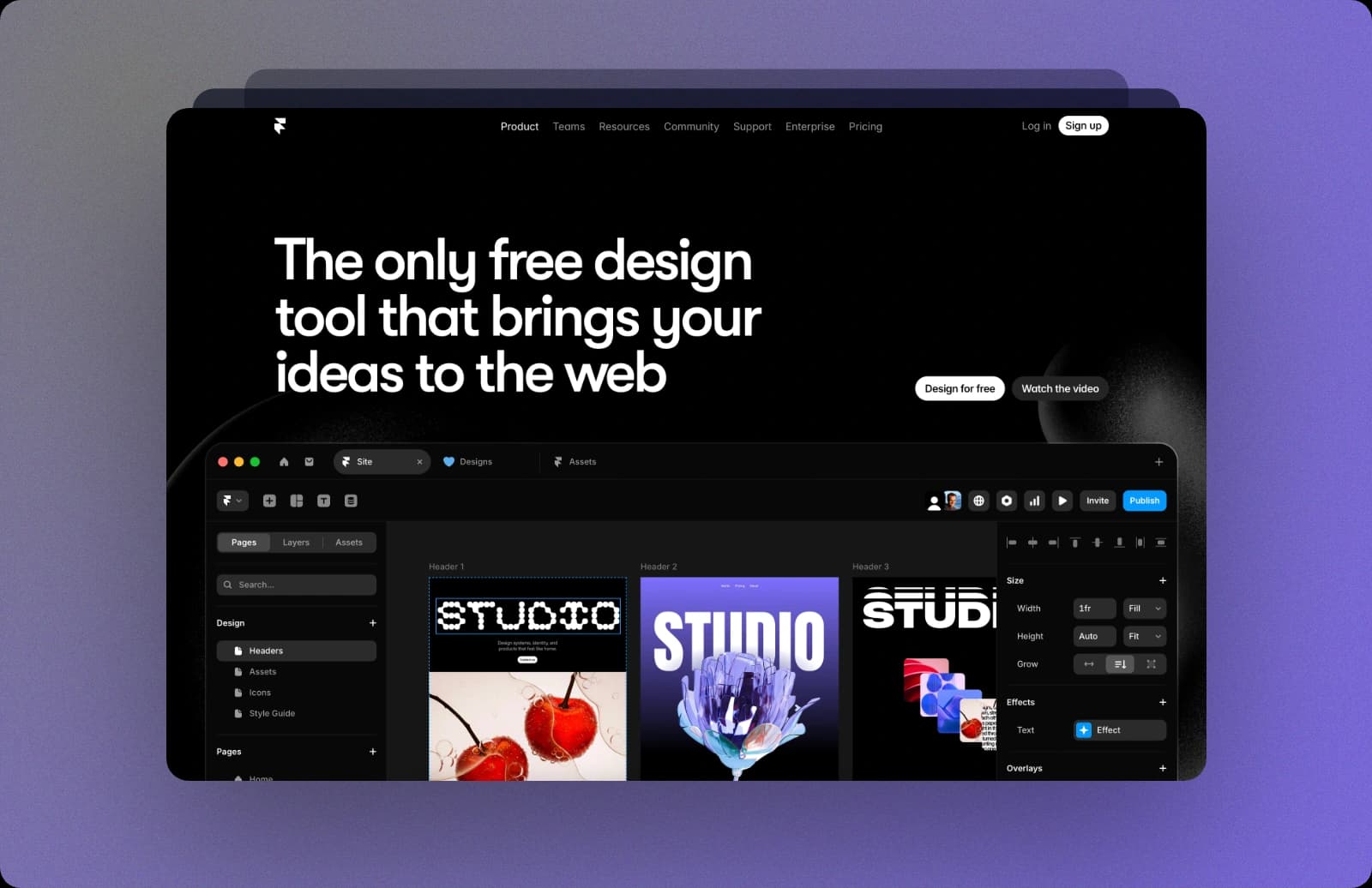
Add balanced spacing, strong contrast, and visual structure so your screenshot reads faster.
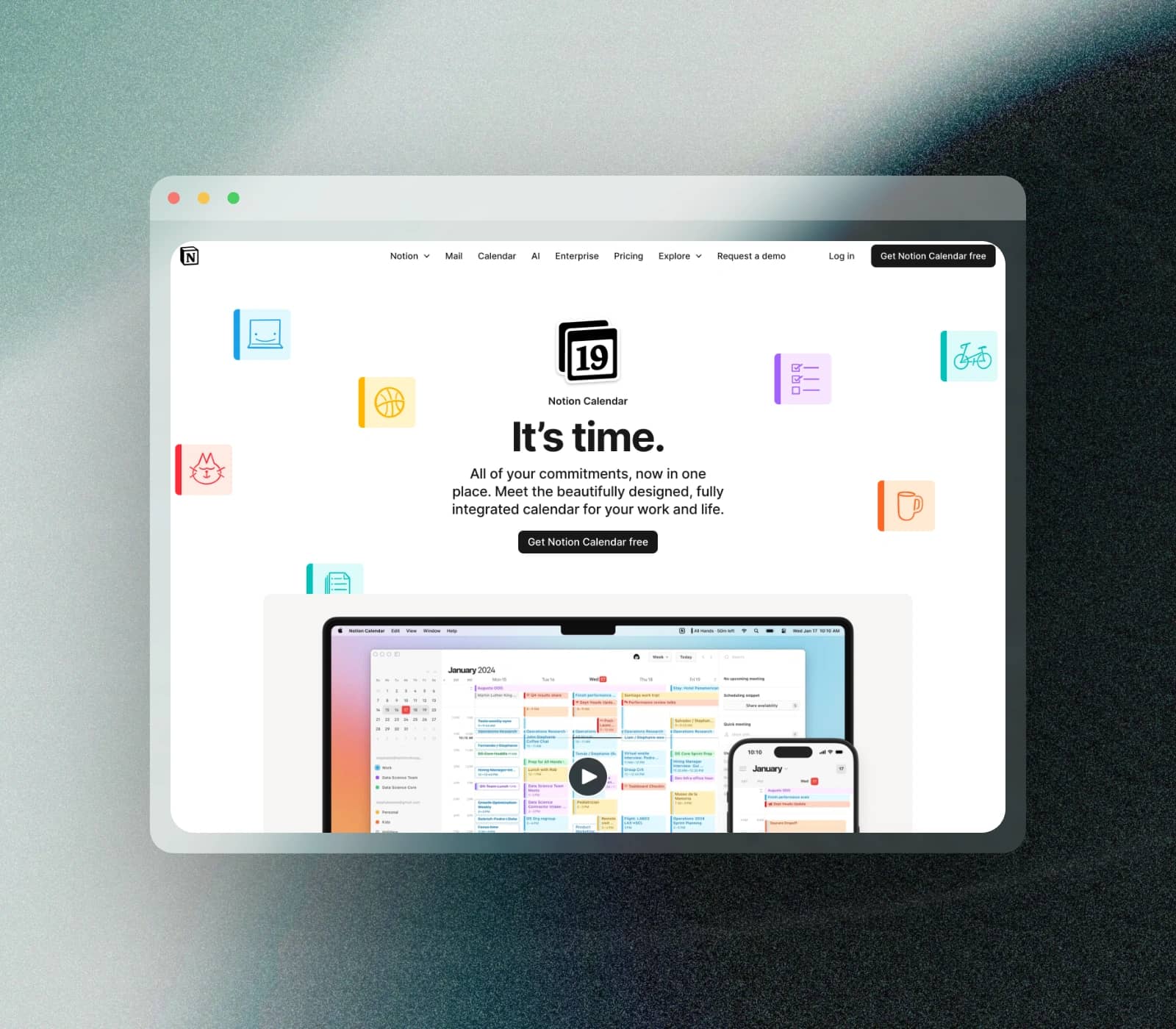
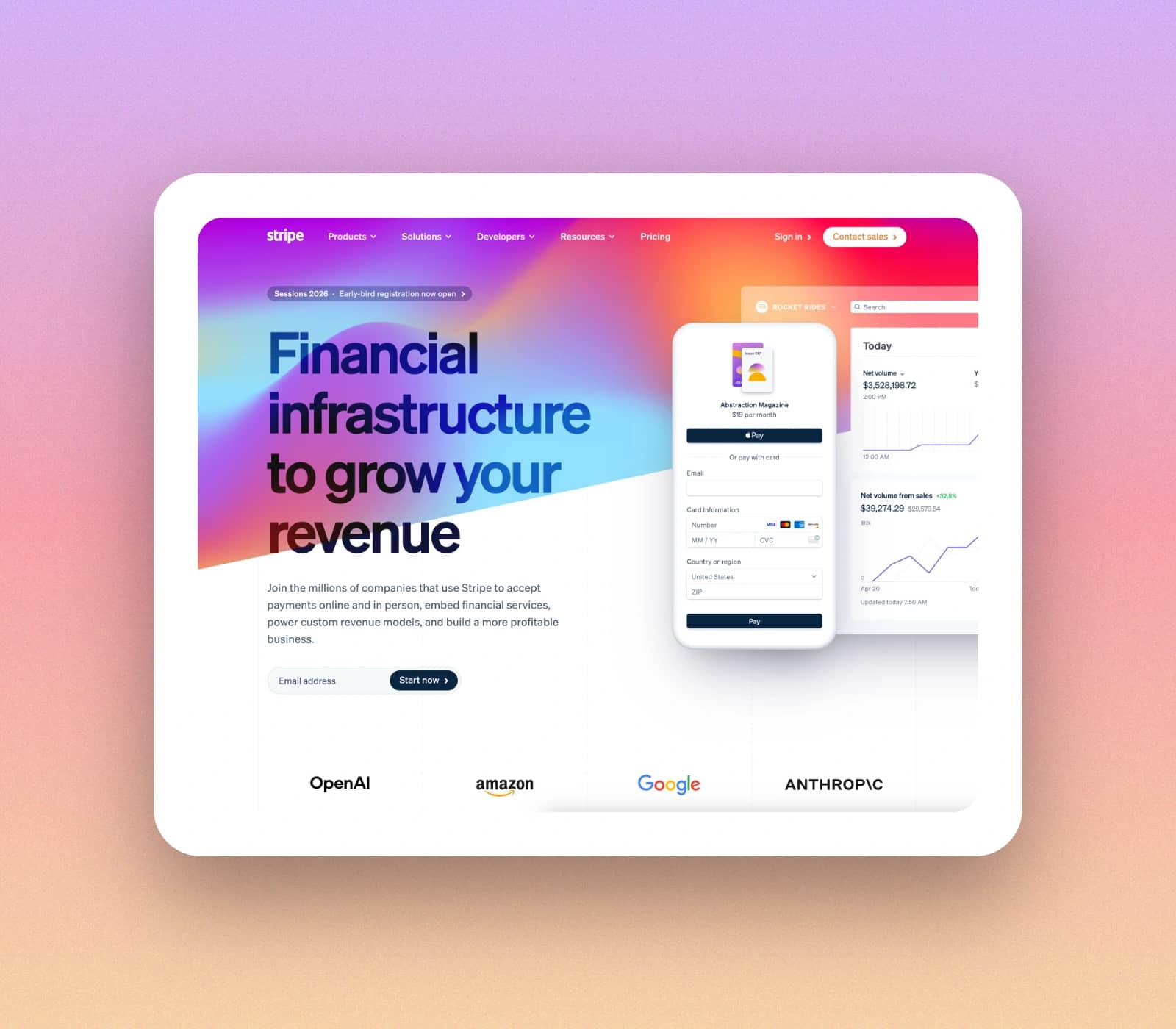
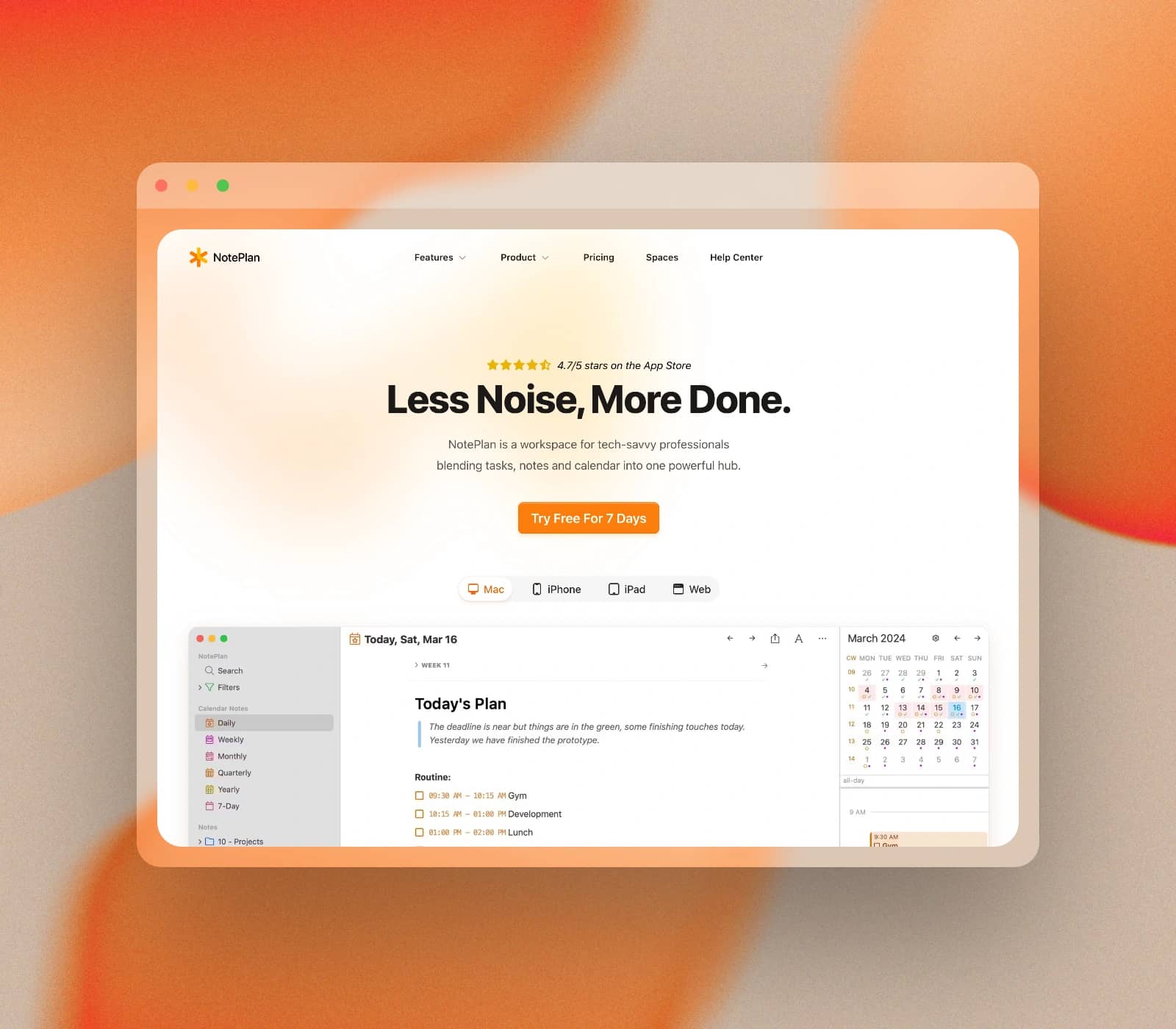
Use browser frames, gradients, and studio-like backgrounds that make details stand out clearly.
Fine-tune corner radius, shadows, canvas fit, and layout density without leaving your workflow.
Add arrows, highlights, text, steps, circles, rectangles, and images for tutorial-ready outputs.
Save PNG, JPG, or WebP and publish directly to docs, social media, or launch pages.
Beautifying happens in-browser, keeping screenshots local and reducing sharing risk.
Beautify once, publish everywhere. Keep output consistent across marketing, education, and internal communication.
Ship polished release visuals for changelogs and launch notes without spending time in heavier design tools.
Highlight important UI steps and improve readability for onboarding docs, help center articles, and handoff guides.
Prepare screenshots for X, LinkedIn, and community posts with cleaner framing and stronger visual hierarchy.
Use these screenshot beautifier examples as references for docs, social assets, and product storytelling.
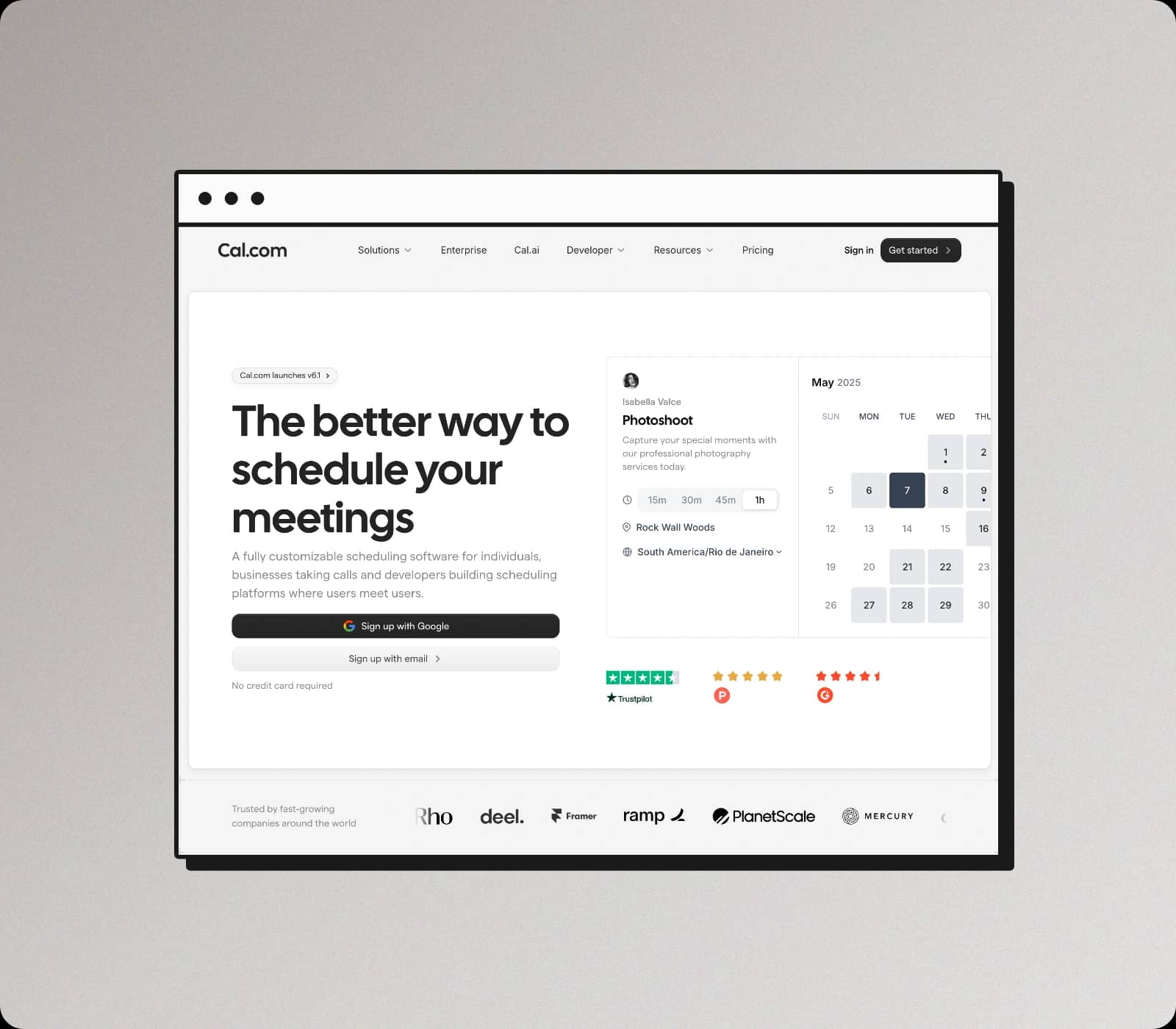
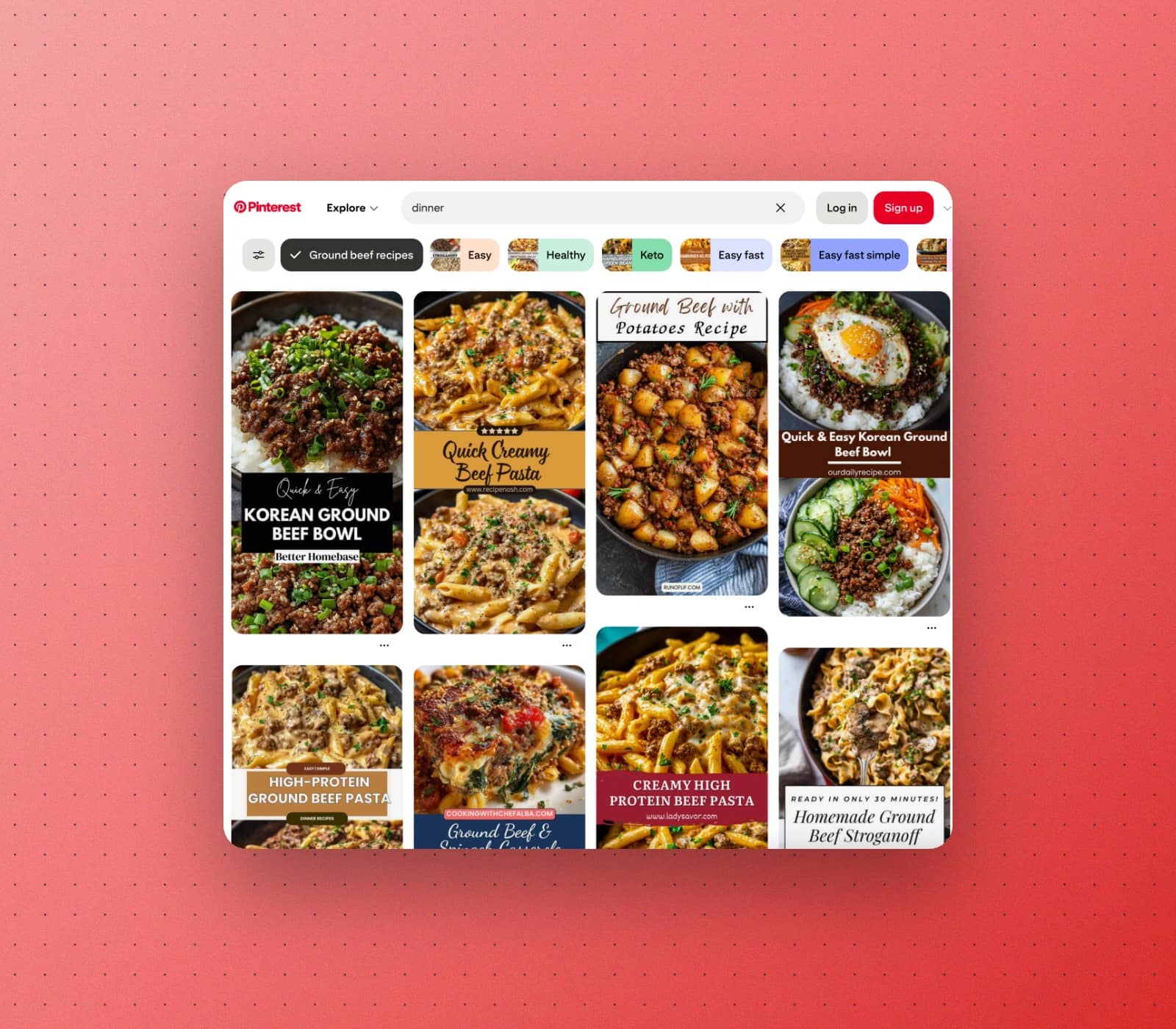
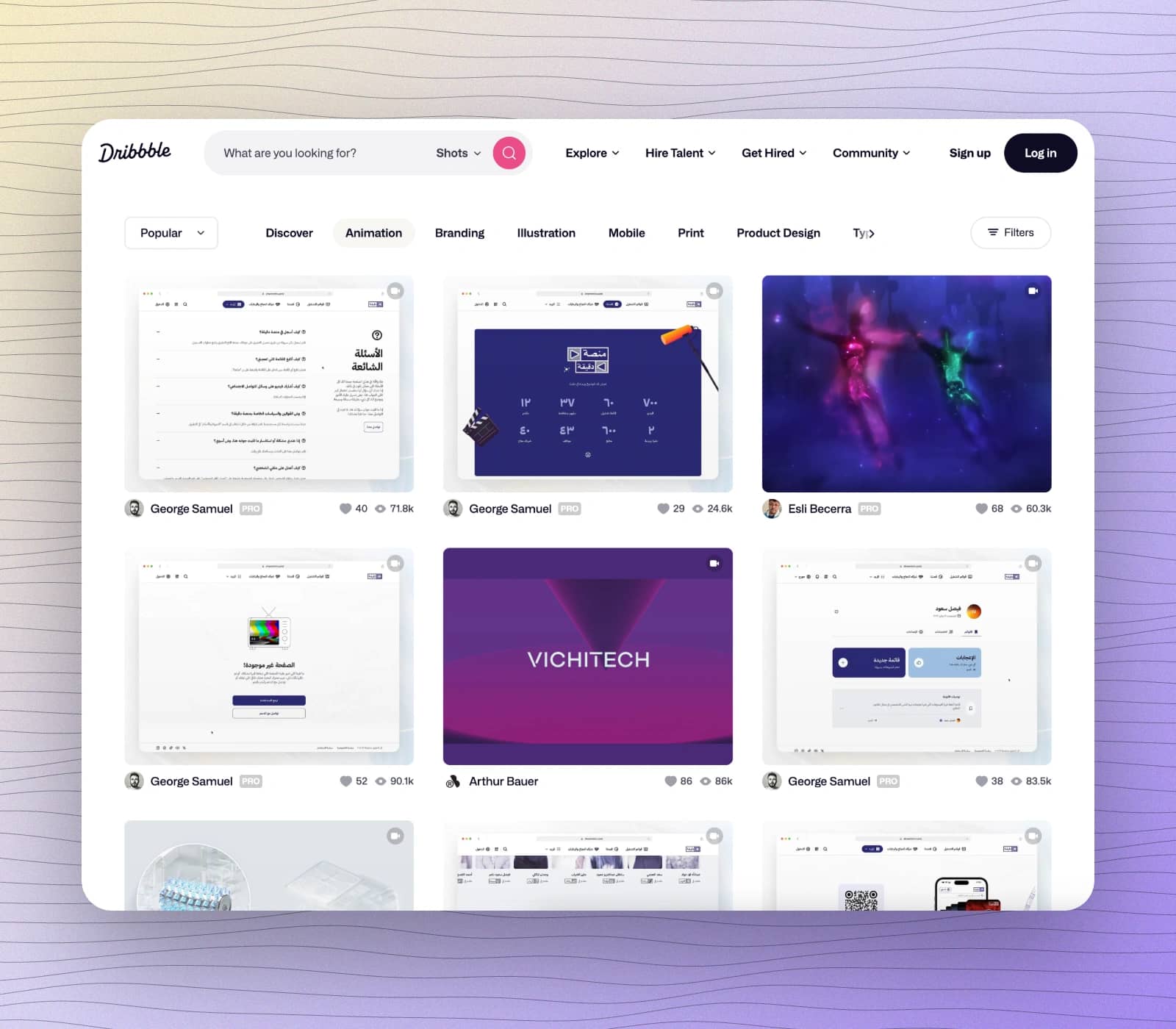
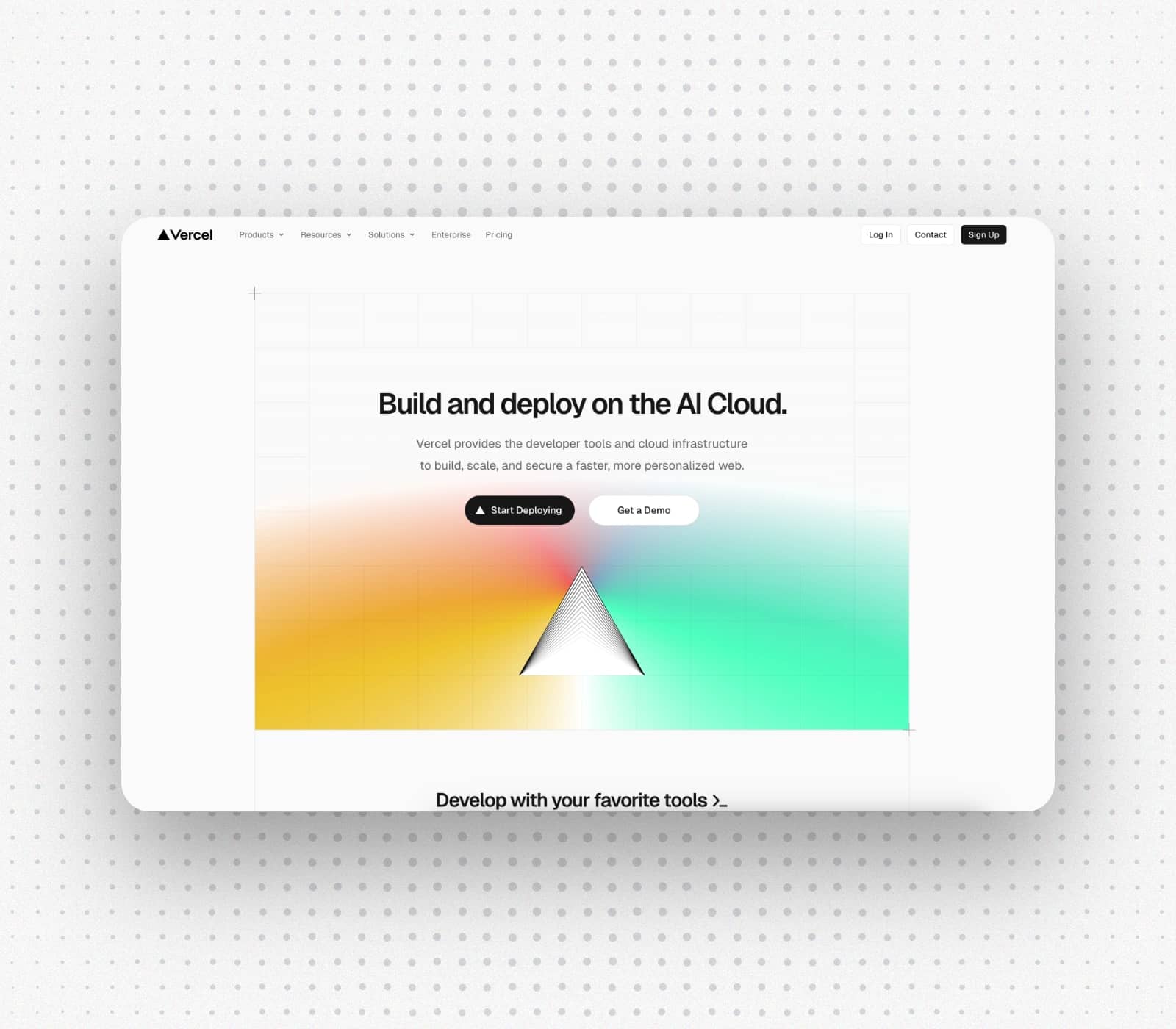
Quick answers about how to beautify screenshots online, export quality, privacy, and workflow.
A screenshot beautifier tool improves visual clarity with balanced padding, consistent backgrounds, polished framing, and clean contrast so screenshots look presentation-ready.
Paste or upload your capture, apply frame and background styling, then tune spacing and shadows. This beautify screenshot online flow is optimized for speed.
GlazeLab focuses on fast screenshot polishing workflows. You avoid heavy setup and get practical controls made specifically for screenshot output.
Yes. You can beautify first, then add arrows, highlights, steps, text, circles, rectangles, and image overlays in the same workflow.
No. Editing and beautifying run locally in your browser, so your screenshots stay on your device.
You can save as PNG, JPG, or WebP at standard quality. Pro includes 2x export for higher-resolution assets.
Use the main editor button on this page. It takes you directly to the live tool at the editor section so you can start immediately.
Open the editor and apply polished styling in seconds. Keep your visuals consistent, clean, and share-ready.
No sign up required. Processing happens locally in your browser.